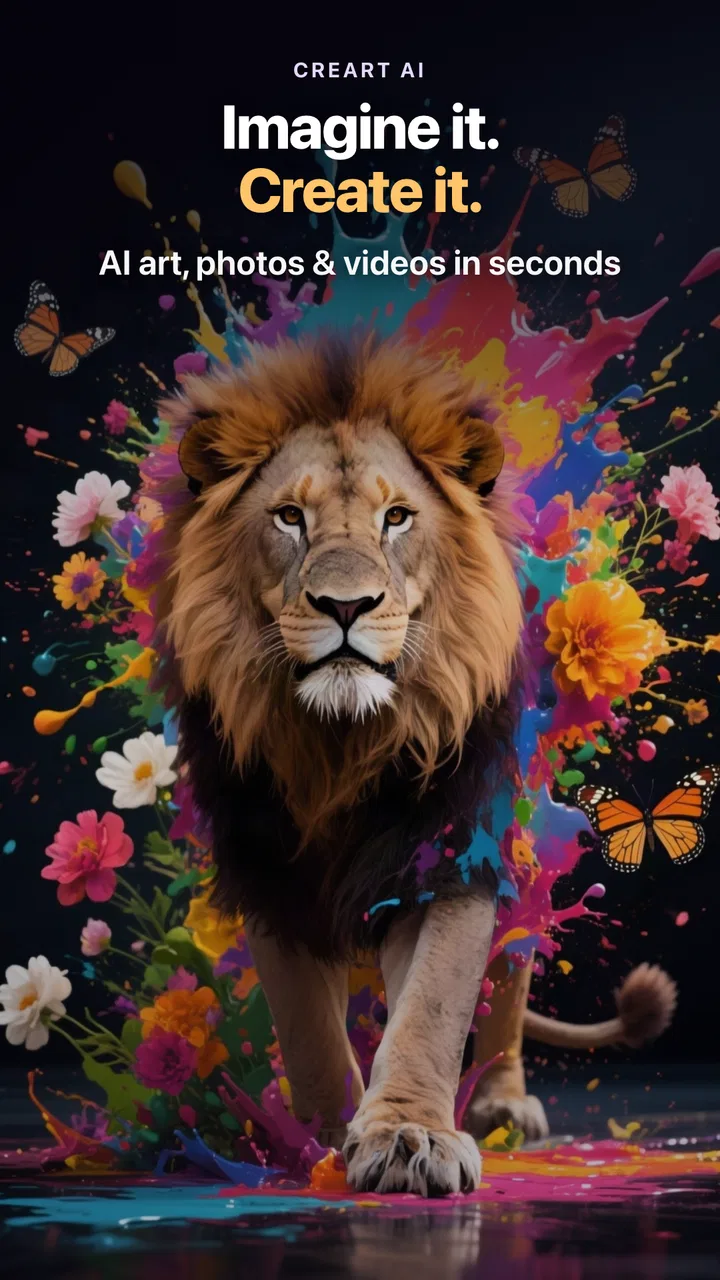
AI Image Generator - CreArt
- 4.2
- Rating
- 1.00M
- Installs
- Free
- Price

 Analysis by App-foxy
I approached AI Image Generator - CreArt as an everyday art tool rather than a replacement for a full drawing studio. Developed by Yawai, this free Art & Design app turns written ideas into generated images, which makes it appealing when I want to explore a visual concept quickly without opening a complicated editor. Its store summary promises instant AI art and pictures, but the more useful question is how much control I actually have once I start creating.
My overall impression is positive but measured. The app is easy to understand, visually focused, and suitable for experimenting with ideas that would take much longer to sketch manually. At the same time, AI image generation is not perfectly predictable, and the cost structure matters if you use it frequently. I would recommend it to curious creators, social-media users, students working on visual concepts, and anyone who wants a fast starting point. I would be more cautious about recommending it to someone who needs precise professional control, consistent characters, or a completely free workflow.
What CreArt feels like in real use
I find CreArt most useful when I treat a prompt as a small creative brief, not a wish for a finished picture. In this section, I’ll focus on how a deliberate starting point helps me judge what the generator is doing and decide whether a result is worth refining. That approach also makes it easier to compare options without mistaking a lucky image for a dependable workflow.
You May Also Like

 Blood Strike: 2.5 Anniversary
Blood Strike’s Loadouts Turn Every Drop Into a Tactical Gamble
A close look at Blood Strike’s custom loadouts: how fast access to signature weapons reshapes its battle royale rhythm, rewards preparation, and narrows the gap between fights.

 Pandora - Music & Podcasts
Pandora’s Music Is Easy to Start, but Harder to Recover
Pandora’s strength is its low-effort path from a seed to a station. Its weak spot is how much confidence it asks you to place in connection, setup, and quiet recovery.

 8 Ball Pool
 Is Built on Rivalries, Rematches, and Routine
A close look at the rivalries, rematches, shared routines, and unanswered safety questions that turn a quick pool match into a persistent mobile community.

 Samsung Music
’s Quiet Strength Is Playing What You Already Own
Its reach comes less from spectacle than from dependable access to a personal library. That simplicity is both the app’s strongest retention engine and its ceiling.

 AccuWeather: Weather Radar
AccuWeather Review: A Quick, Clear Forecast for Everyday Decisions
For everyday plans, the best forecast is the one you can understand quickly. AccuWeather makes rain timing, radar, and local conditions easy to act on, with a few trade-offs.

 Hill Climb Racing
Why Hill Climb Racing Still Turns Crashes Into One More Run
A tiny car, a bumpy hill and one more upgrade: Hill Climb Racing keeps resurfacing because its simple chaos makes every near-miss feel personal.
More From Our News Desk



A quick path from an idea to an image
The main strength of CreArt is the short distance between imagination and a visible result. Instead of learning layers, brushes, masks, or complex menus, I can begin with a description and see what the app makes of it. That simplicity is useful when the goal is brainstorming rather than polishing. I can test whether a scene works visually before spending time recreating it in another application.
This makes the app especially handy for rough visual planning. For example, if I am preparing a birthday invitation and want to compare a watercolor garden, a dreamy night sky, and a playful illustrated table setting, I can use the generated images as direction. I would not treat the first result as finished artwork automatically, but it can reveal which colors, composition, or mood suits the project.
The same workflow works for personal projects. I might generate a fantasy landscape for a writing exercise, a mood image for a room makeover, or a visual reference for a handmade painting. The important distinction is that CreArt helps me move from a vague thought to a concrete reference. That is where it offers more value than a conventional photo editor, which expects me to bring the source material myself.
Why the simple interface matters
Many creative apps become frustrating because they present too many controls before I know what they do. CreArt is more approachable for casual users because the central task is clear: describe what I want and inspect the result. I do not need advanced design knowledge to begin, and that lowers the barrier for people who normally avoid art software.
There is also a useful psychological benefit to fast generation. When I draw from scratch, I may abandon an idea because the first sketch looks poor. With an AI generator, I can explore several directions before deciding which one deserves more attention. That encourages experimentation, although it can also lead to endless prompt changes without a clear final goal. I get better results when I decide in advance whether I am looking for inspiration, a shareable image, or a draft for another project.
One practical tip is to describe the subject, setting, mood, lighting, and visual treatment separately rather than writing one rushed sentence. A prompt such as “a small reading corner” leaves a lot open. Adding the room style, time of day, atmosphere, and preferred artistic approach gives the generator more useful guidance. This is not a guarantee of a perfect result, but it makes comparisons easier because I know which part of the description I am changing.
Where the results need human judgement
AI-generated images can look impressive at first glance while still containing details that I would not accept in a finished design. Hands, small text, repeated objects, jewelry, and complicated patterns deserve a close inspection. If I were creating an invitation, poster, or product mock-up, I would keep important wording outside the generated image and add it later in a dedicated editor. Generated lettering is often less dependable than ordinary typed text.
This is one of the clearest trade-offs. CreArt can produce a strong visual atmosphere quickly, but it does not give me the same deliberate control as a drawing application or a layered design tool. A conventional editor is better when I need exact dimensions, reliable typography, carefully aligned elements, or a repeatable brand style. CreArt is better at opening creative possibilities than at guaranteeing production-ready precision.
Useful workflows beyond casual experimentation
A more effective workflow is to use the app in stages. First, I create several broad concepts without trying to perfect every word. Then I select the strongest direction and refine only the elements that matter: the subject, viewpoint, color mood, or background. Finally, I move the chosen image into another tool if I need cropping, text, retouching, or layout work. This keeps CreArt in the role where it is strongest instead of asking it to do every job.
Another useful approach is to generate references rather than final assets. An illustrator can use a result to study the arrangement of light and objects, then draw an original version. A writer can use it to visualize a scene and notice missing details in a description. A teacher or student can use it to make a concept easier to discuss. In these cases, the value is not whether the image is flawless; it is whether it helps a person think more clearly.
I also recommend saving the prompt that produced a promising result, if the app and the user's chosen workflow allow that in a practical way. Rewriting a successful description from memory is surprisingly difficult. Keeping the wording nearby makes it easier to compare variations and understand which changes improved or weakened the image. This is a small habit, but it turns random experimentation into a more repeatable process.
Trust starts with visible choices
Because this is an AI image app, trust is not only about image quality. I also pay attention to what I am asked to provide, what actions are visible, and whether I can make sensible choices before creating or sharing anything. I do not want to treat a creative tool as a private sketchbook automatically. A prompt can contain personal information, and an uploaded image can reveal faces, locations, documents, or other details that I did not intend to publish.
My cautious rule is simple: I avoid putting sensitive personal information into a prompt, and I do not use private photographs as casual test material. If I want to experiment with a portrait idea, I use an imaginary description or a non-sensitive image instead. This is not a criticism of Yawai or a claim about hidden handling; it is a sensible boundary for any connected image-generation service when I am evaluating what to share.
I would also read each visible permission request and in-app notice rather than tapping through automatically. The useful question is whether a requested access is necessary for the action I am trying to perform. If I only want to create an image from text, I prefer not to grant access that seems unrelated to that task. When I choose an image from my device, I select only the intended file and avoid broad personal albums whenever the operating system gives me that choice.
Account and content decisions deserve attention
Before relying on the app for an important project, I would check what account controls and deletion choices are presented inside the current version. I would want to know how to leave the service, remove a project if that option is offered, and distinguish between an image stored locally and one associated with an online account. Those are practical questions, especially if I use the app on a shared device or create material connected to work.
I would also review the app's current privacy information and the platform's permission screen before using personal content. The available choices can change with app updates and operating-system settings, so I would not assume that an old experience applies forever. The current release is version 2.7.2, and keeping any app updated is sensible for access to the latest controls and fixes, while still checking what changes after an update.
For people who are especially privacy-conscious, the safest workflow is to keep prompts general, avoid identifiable faces and confidential documents, and export only images that have been inspected. If a project involves client material, internal plans, or unreleased products, I would choose a tool whose business and data controls I had already evaluated carefully. CreArt may be convenient for ideation, but convenience should not decide how sensitive content is handled.
Free to start, but not necessarily free for heavy use
CreArt is free to install and use as an entry point, which makes it easy to try without committing money immediately. However, its in-app purchases range from $4.49 to $89.99 per item. That wide range tells me to pay attention before confirming a purchase, particularly if I expect to generate many images or use premium options repeatedly.
I would approach the app as a tool to test first, not as an unlimited production pipeline. A casual user may find the free experience sufficient for occasional inspiration, while a frequent creator should examine what is included before building a routine around it. The most important cost question is not simply the price of one purchase; it is whether the way I create images encourages repeated spending.
On a normal afternoon, I might use CreArt to prepare ideas for a small social post. I could generate a few visual directions, choose the one with the clearest subject, and finish the caption and layout elsewhere. If I were still experimenting after many attempts, I would stop and assess whether I was improving the result or merely chasing a lucky variation. That pause protects both my time and my budget.
Who will enjoy it most
The app suits people who want immediate creative feedback without studying a complex program. Beginners can use it to explore styles, while more experienced creators can treat it as a concept generator. It is also a reasonable option for someone who wants to turn a written idea into a visual reference before deciding whether a larger project is worth pursuing.
Its audience is not limited to artists. A student might use it to illustrate a presentation concept, a hobby writer might visualize a fictional setting, and a small creator might develop a consistent mood for a series of posts. In each case, I would keep the human decisions in charge: the person chooses the idea, checks the result, corrects errors, and decides where the image belongs.
The Teen content rating is another reason I would encourage thoughtful use rather than unrestricted experimentation. Parents and younger users should discuss what prompts are appropriate, what images should remain private, and whether purchases are protected on the device. The rating is not a substitute for supervision or personal judgement, but it is a useful signal to consider before handing the app to a child.
Who should choose another kind of tool
I would skip CreArt if my priority were exact editing control. A traditional drawing app is a better fit for someone who wants to place every stroke manually. A photo editor is preferable when the source image already exists and the goal is precise retouching. A layout application is stronger for posters, invitations, and branded graphics where text placement and measurements must be dependable.
I would also hesitate to use it as the only tool for a project that requires the same character, object, or visual identity across many images. AI generation can be useful for exploring a look, but maintaining continuity is a different challenge from making one attractive picture. For professional work, I would test a complete workflow first and confirm that the results can be corrected without wasting more time than a conventional method would require.
Another reason to look elsewhere is if I am uncomfortable with the purchase model or do not want to review privacy choices before using an image service. The app's free entry is appealing, but users who want a completely predictable, one-time-cost workflow may prefer software with clearer fixed pricing and local editing tools.
My measured verdict after weighing convenience and control
CreArt succeeds as a fast bridge between an idea and a visual draft. I like it most when I use it to brainstorm, compare moods, or create a reference that I will refine elsewhere. The low barrier to entry makes the app approachable, and its focus on generated images is more inviting than a full creative suite for quick experiments.
Its limitations are equally important. Results still need inspection, generated text should not be trusted for important layouts, and detailed creative control is weaker than in dedicated art or design software. The in-app purchase range means frequent users should monitor spending, while anyone working with personal or confidential material should make deliberate choices about prompts, images, permissions, and account controls.
With a 4.3 average from around 96 thousand ratings and more than 1 million installs, the app has clearly attracted a substantial audience. Those figures make it worth trying, but they do not remove the need to decide whether its workflow matches my own needs. I see it as a flexible sketching partner, not an automatic finished-art machine.
My recommendation is to start with harmless, low-stakes prompts, learn how the controls and purchase screens work, and judge the results at full size rather than by the thumbnail alone. If I want inspiration and quick visual exploration, I would happily keep CreArt available. If I need exact composition, dependable typography, sensitive-content safeguards, or a fully controlled professional pipeline, I would pair it with another tool or choose a more traditional alternative.
FAQs for AI Image Generator - CreArt
01What is AI Image Generator - CreArt used for?
AI Image Generator - CreArt is an innovative application designed to create unique and stunning images using artificial intelligence. It allows users to generate artwork from text prompts or modify existing images with AI-driven tools. Perfect for artists, designers, and hobbyists, it offers a creative platform to explore endless visual possibilities.
02Is AI Image Generator - CreArt free to use?
AI Image Generator - CreArt offers a free version with basic features, allowing users to explore its capabilities without any initial cost. However, for advanced functionalities and premium content, there might be in-app purchases or subscription options available. These provide access to enhanced tools and additional resources.
03What devices are compatible with AI Image Generator - CreArt?
AI Image Generator - CreArt is compatible with both Android and iOS devices. The app is designed to function smoothly on most smartphones and tablets, providing a seamless user experience. Users should ensure their device meets the app’s minimum system requirements for optimal performance and to access all features.
04How user-friendly is AI Image Generator - CreArt for beginners?
AI Image Generator - CreArt is designed with an intuitive interface, making it user-friendly even for beginners. It includes tutorials and guides to help new users navigate the app effectively. The straightforward design ensures that anyone can quickly start creating unique images without prior experience in digital art.
05What privacy measures are in place for AI Image Generator - CreArt?
AI Image Generator - CreArt takes user privacy seriously, implementing robust measures to protect personal data. The app adheres to strict privacy policies, ensuring that user images and information are not shared without consent. Users can review the privacy policy within the app to understand how their data is managed.
Pros
- User-friendly interface for quick navigation.
- High-quality image outputs consistently.
- Wide variety of styles and filters available.
- Fast processing with minimal lag.
- No ads in the free version.
Cons
- Limited free daily image generations.
- Requires internet for image creation.
- Occasional style mismatches.
- Subscription model for premium features.
- Lacks detailed editing tools.

AI Image Generator - CreArt
Gallery